

Using the TUI
The TUI is aven’s keyboard-driven interface for managing tasks locally.
Most sidebar icons require a Nerd Font selected in your terminal profile. If you see blanks or boxes, follow the terminal font setup.
avenUse it to find work, capture tasks, edit them, and inspect their details. See Organizing tasks for task structure, Schedule tasks for availability and deadlines, and Recurring tasks for repeating work.
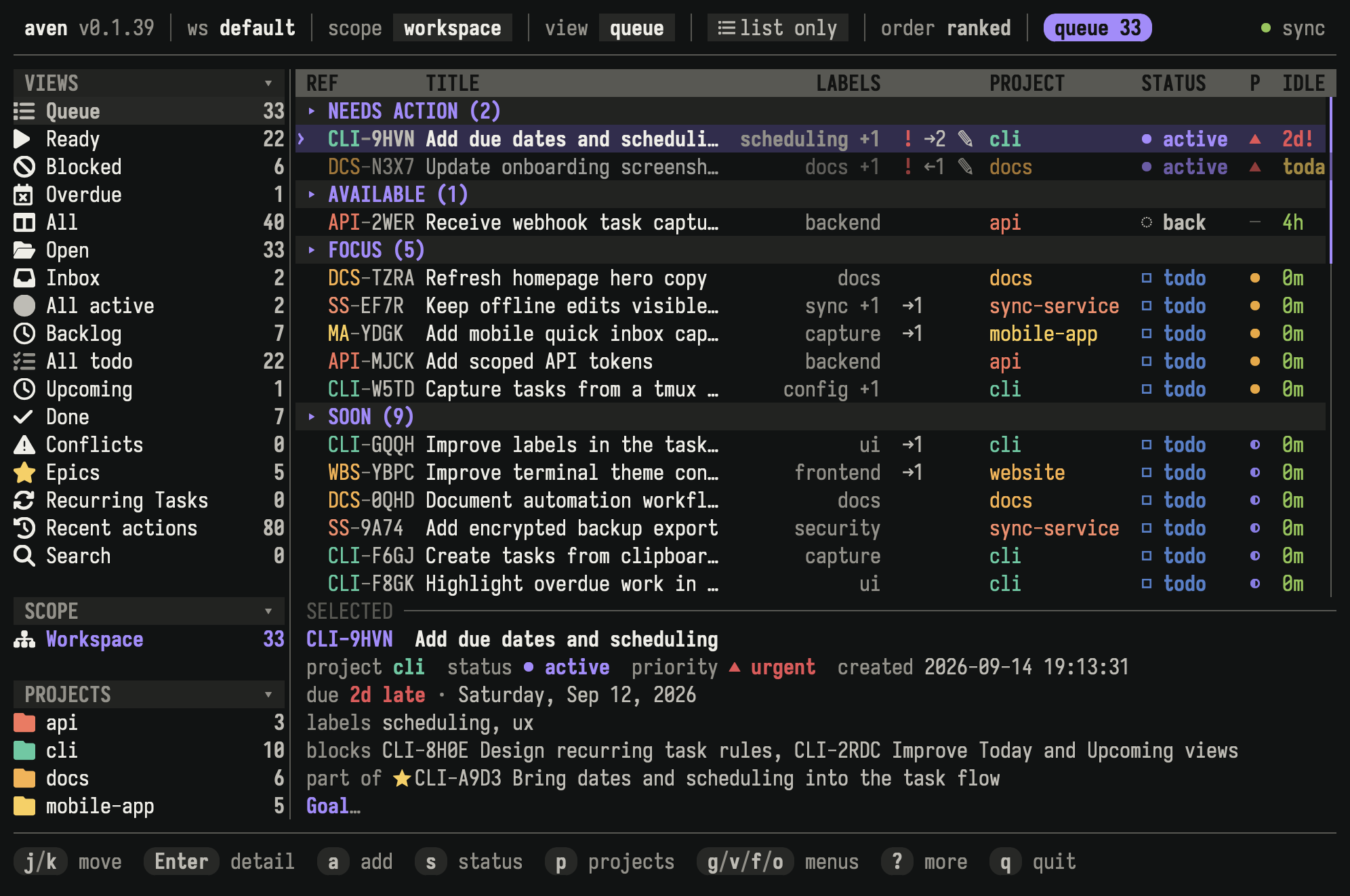
Queue groups open work across the active workspace. The preview below the list shows details for the selected task.
Use ? for commands available in the current mode. Use : to search the complete command catalog by name or description. Custom TUI commands can add trusted local programs to this catalog.
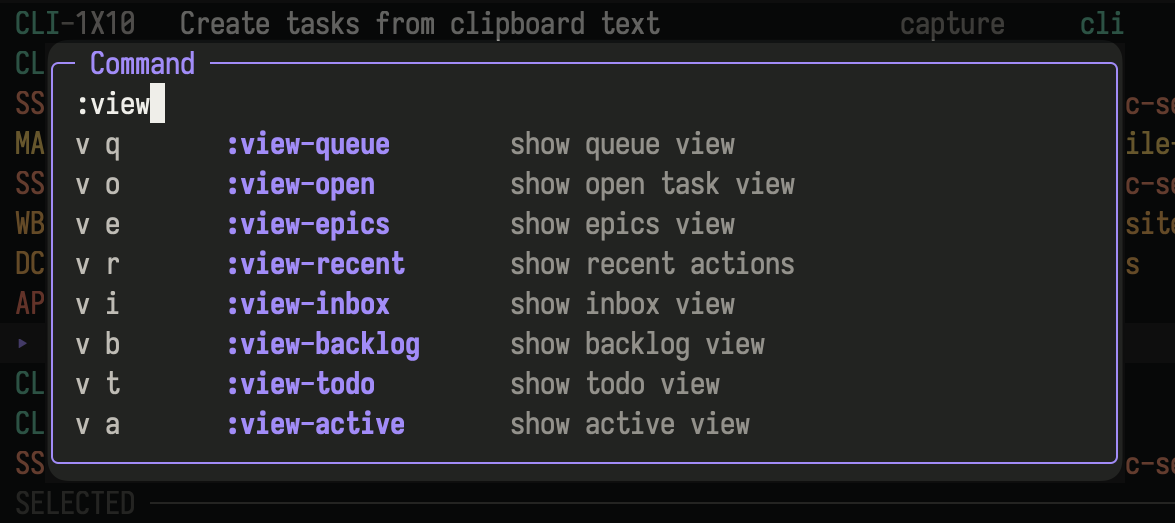
The command palette searches the catalog used by contextual help and prefix hints.
Find work
Section titled “Find work”Queue is the default view. It ranks available work by what needs attention across the active scope, including tasks with unresolved blockers. Ready is the subset that can be started: it excludes epics, deferred tasks, and tasks with unresolved dependencies. See Concepts for queue groups, statuses, priorities, availability, due dates, dependencies, epics, and related tasks.
Use the sidebar or the v command family to switch queries and layouts.
| Goal | Query or layout | Open with |
|---|---|---|
| Decide what needs attention | Queue | v q |
| Start work without an unresolved blocker | Ready | v y |
| Review unresolved dependencies | Blocked | v k |
| Review deadlines before today | Overdue | v x |
| Toggle a compatible query between list and lifecycle lanes | List or columns layout | v l |
| See all unfinished work | Open | v o |
| Triage captured work | Inbox | v i |
| Review work saved for later | Backlog | v b |
| See committed work | Todo | v t |
| See work in progress | Active | v a |
| Review deferred work by availability | Upcoming | Sidebar or aven tui --view upcoming |
| Review completed and canceled work | Done | v d |
| Resolve synchronization conflicts | Conflicts | v c |
| Plan with parent tasks | Epics | v e |
| Manage repeating schedules | Recurring Tasks | v u |
| Audit recent changes | Recent actions | v r |
| Return to accepted search results | Search results | v s |
Workspace scope shows tasks across projects. Project scope narrows every view to one project.
aven and aven tui start in the project inferred from the current directory, or silently use workspace scope if none matches. Use aven -A (or aven tui --all-projects) for all projects, -p <project> for a specific project, or set scope: workspace to change the default. Clicking the active workspace row or pressing g a widens to all projects.
| Key | Action |
|---|---|
g a | Show all projects in the workspace |
g p | Choose a project scope |
g w | Switch workspace |
Type in the project and workspace pickers to filter them.
The sidebar’s Workspaces section lists every workspace in key order with
its available open task count. Click a workspace or press Enter on it to
switch; switching clears scope and filters. Select the current workspace to
show all its projects, keeping your filters. A current marker identifies
which workspace the Projects section belongs to when a project is scoped.
The header and sidebar show the active workspace, scope, view, and filters.
Click a sidebar heading, or focus it and press Enter, to collapse or expand
that section. Choose which views the sidebar lists with
tui.sidebar.views.
Use Tab (or Left in list layout) to focus the sidebar. Browse with
Up/Down or k/j, page with PageUp/PageDown (half a page with
Ctrl-u/Ctrl-d), and use Home/End to reach the edges. Long lists keep the highlighted row visible;
page navigation and mouse wheel movement stop at the first and last selectable
rows. While browsing tasks, the wheel over the visible sidebar focuses and
browses it without changing the active scope or task selection. Scrolling over
the task list returns focus to tasks and moves the task selection; no click is
needed to switch between panes. Clicking blank space in the task pane also
focuses it, without changing the selected task. Hovering alone does not change
focus. Active task
detail, triage cards, and overlays retain wheel ownership. Press Enter to
activate the highlighted view or project, or Esc/Tab to return to tasks
without activating it.
Search, filter, and order
Section titled “Search, filter, and order”Press / to search task text, notes, labels, metadata, and refs as you type. Search follows the active project scope; the title chip names the project or shows all projects. Enter opens the selected result, and Tab opens the full Search results view in the chosen scope.
When opened from a project, Ctrl+S toggles between that project and all projects. If the project has no matches, the dialog shows how many matches exist elsewhere. Esc closes the dialog without changing the underlying view. Dependency and related-task searches always cover all projects; epic child search stays in the epic’s project.
Filters constrain the current view. Useful filter commands include:
| Key | Action |
|---|---|
f l | Filter by label |
f p | Filter by priority |
f r | Cycle recurring lifecycle |
f x | Cycle deleted-task visibility |
f c | Clear filters |
Press o to choose ordering. Queue uses aven’s attention score. Other views can order by fields such as availability and due date.
For shell shortcuts that open an initial view, project, filter, or task, see aven tui.
Capture tasks
Section titled “Capture tasks”Press a to open the task composer. Project, status, priority, labels, availability, due date, natural-language schedule, title, and description stay visible as one form. The active field has a ▶ marker, so focus remains clear without relying on color. The project picker’s Infer option uses the project mapped to the current directory. Choose a named project when the task belongs elsewhere.
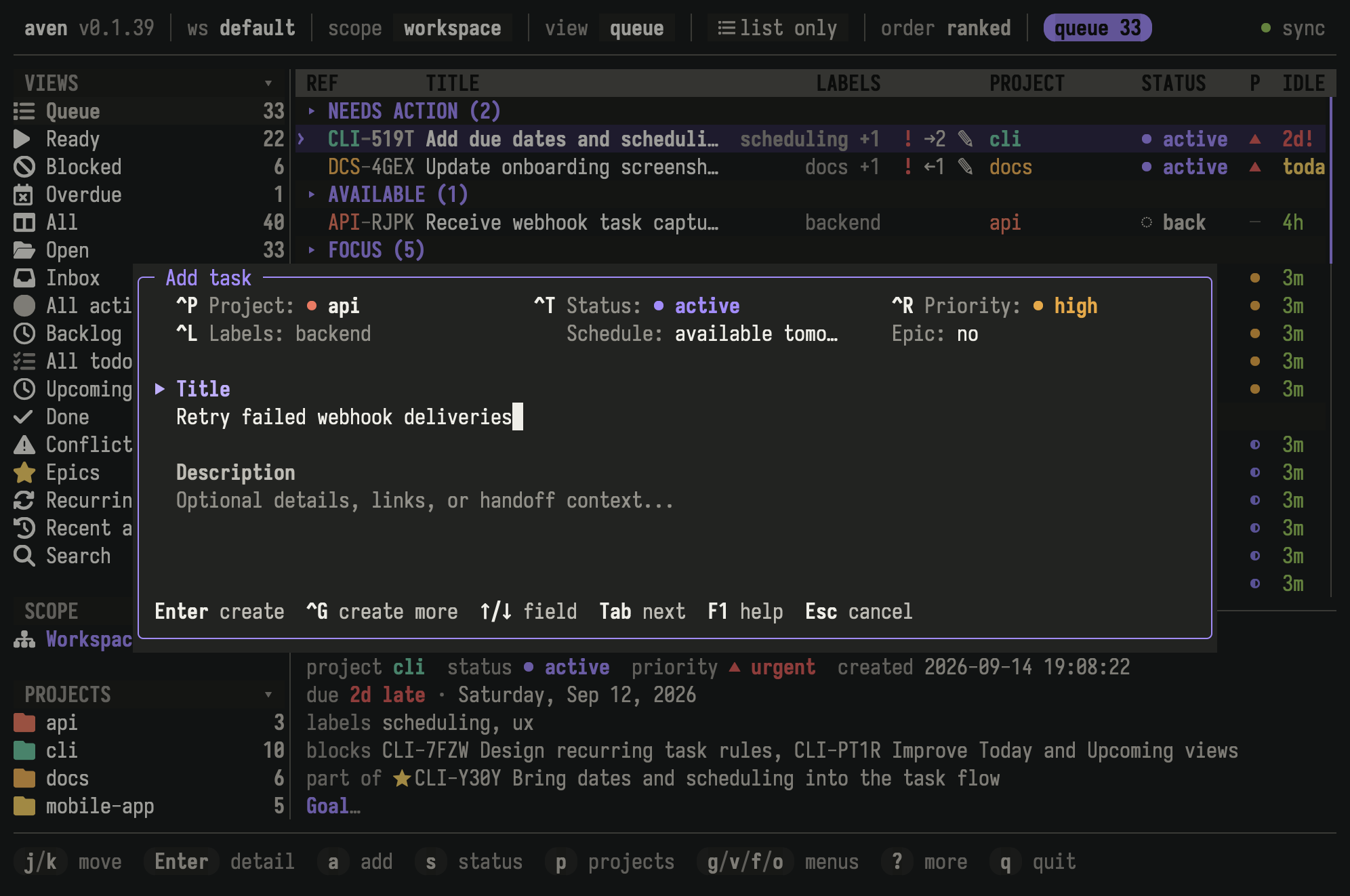
Set task metadata, scheduling, title, and description in the same form.
Press Ctrl-s to create the task from any field, or Ctrl-Enter in terminals that support it. Enter creates from the title, opens pickers on metadata fields, and adds a newline in the description. Text fields support Alt-Left and Alt-Right to move by word and Alt-Backspace to delete one.
In the label picker, typing filters existing labels. If the name is new, a + create row appears below the matches. Use ↑ or ↓ to highlight it, then Enter, Space, or Tab to create and select the label. The best existing match stays highlighted by default.
Press Ctrl-g to create the task and start another with the same project, status, priority, and labels. It isn’t available for repeating tasks.
New tasks default to inbox, or todo when they have a priority or repeat. The status field marks this default with (auto). Choosing a status overrides it; choose Auto to go back.
Set a schedule
Section titled “Set a schedule”The Schedule field accepts natural expressions such as tomorrow,
due next Friday, or every Friday at 09:00. Press Enter on the field for a
structured editor with One-off and Repeating modes.
See Scheduling tasks for availability and deadlines, and Recurring tasks for repeating schedules.
Create with AI
Section titled “Create with AI”Press Ctrl-n when the visible title and description contain rough notes, pasted context, or dictated input. The configured task-intake agent produces a structured draft for review. See agent.task_intake. If you close the TUI before the task is created, Aven sends a notification when it is.
Attach images
Section titled “Attach images”Copy a PNG, JPEG, GIF, or WebP image and press Ctrl-v, or paste a local image path or file:// URL. Images remain attached to the draft when validation fails.
If clipboard image paste is unavailable, save the image and paste its path. See terminal tips for terminal-specific preview setup, Configuration for image optimization, and aven attachment for limits and command-line management.
Triage and edit tasks
Section titled “Triage and edit tasks”Direct shortcuts cover frequent lifecycle changes:
| Key | Action |
|---|---|
s | Choose status |
! | Choose priority |
d | Mark done |
x | Mark canceled |
n | Add a note |
u | Undo the latest completed TUI mutation |
Use the e family to edit task fields:
| Key | Field |
|---|---|
e t | Title |
e d | Description |
e j | Project |
e p | Priority |
e a | Availability |
e u | Due date |
e l | Labels |
The t family contains lifecycle, priority, relationship, recurrence, delete, and restore actions. Press t and follow the footer hints, or search by action name with :.
Delete and restore
Section titled “Delete and restore”t D deletes the selected task. Show deleted tasks with f x, then press t R to restore one. Use x instead to keep a task as canceled.
Mark and change several tasks
Section titled “Mark and change several tasks”| Key | Action |
|---|---|
Space | Toggle the selected task’s mark |
t V | Toggle marks on visible tasks |
t C | Clear all marks |
Most edits, deletes, and column moves then apply to every marked task, and u undoes them together.
Columns
Section titled “Columns”Columns shows the current view as lifecycle lanes.
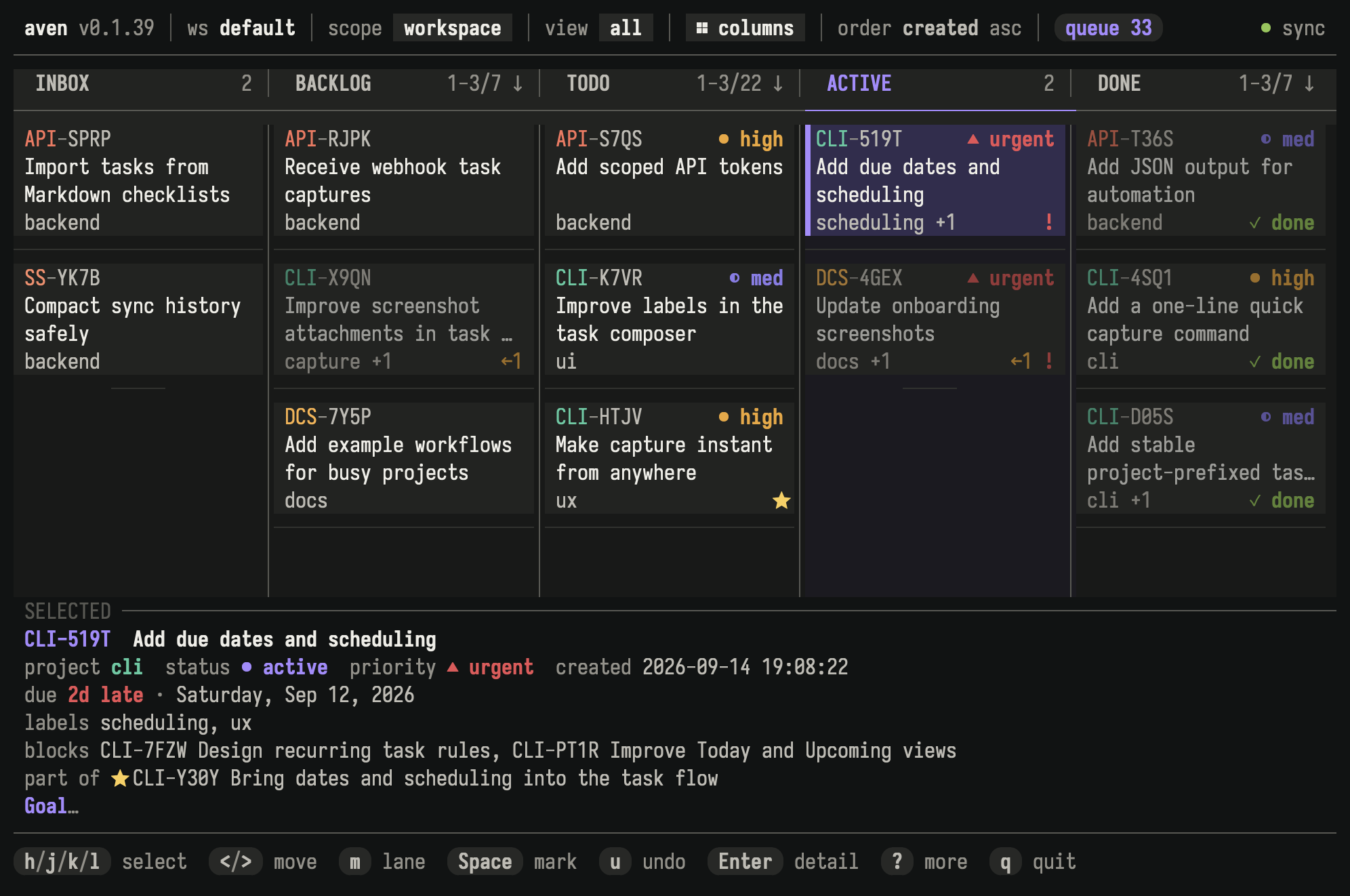
Columns arranges tasks into lifecycle lanes and shows details for the selected task.
Press v l to switch between list and columns. Views with their own layout, such as Queue and Upcoming, show list only in the header. Arrow keys move within and between lanes. Press < or > to move the selected or marked tasks one lane, or m to choose a destination. A moved task takes the lane’s first status.
Press g d to toggle the selected-task preview. Configure lane names and status groups under tui.columns.
Task detail
Section titled “Task detail”Press Enter on a task to open detail.
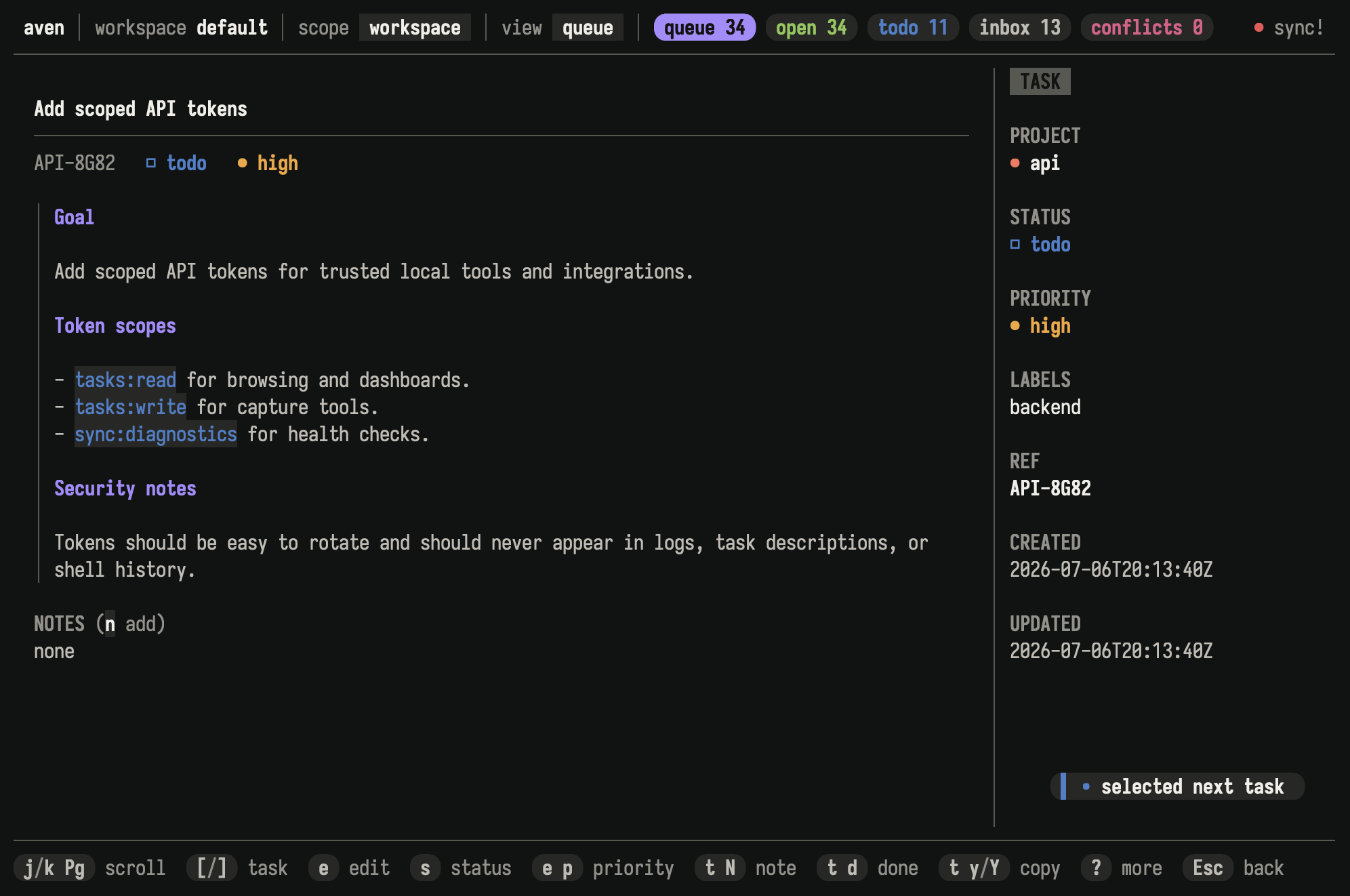
Task detail shows Markdown descriptions, notes, relationships, attachments, and editable metadata.
Use [ and ] to switch tasks without returning to the list.
Copy task information
Section titled “Copy task information”The y family copies task information from either the list or detail:
| Key | Copies |
|---|---|
y r | Display ref, such as APP-7KQ9 |
y i | Durable task ID |
y t | Title |
y d | Description |
y a | Title and description |
y n | Notes |
y m | Complete task report as Markdown |
With tasks marked, y r, y i, and y t copy one line per marked task.
In detail, drag across rendered title or description text and press y to copy only that selection.
Drag across rendered task text and press y to copy the selection.
Publish a task report as a GitHub gist
Section titled “Publish a task report as a GitHub gist”From task detail, press t g to publish the Markdown task report as a secret GitHub gist and copy its URL. Secret gists are unlisted, not private: anyone with the URL can view them. Requires an authenticated gh CLI. See an example task report.
Image attachments
Section titled “Image attachments”Attachments appear below the description. iTerm2, Kitty, WezTerm, and Ghostty can show inline previews. Other terminals show a text label.
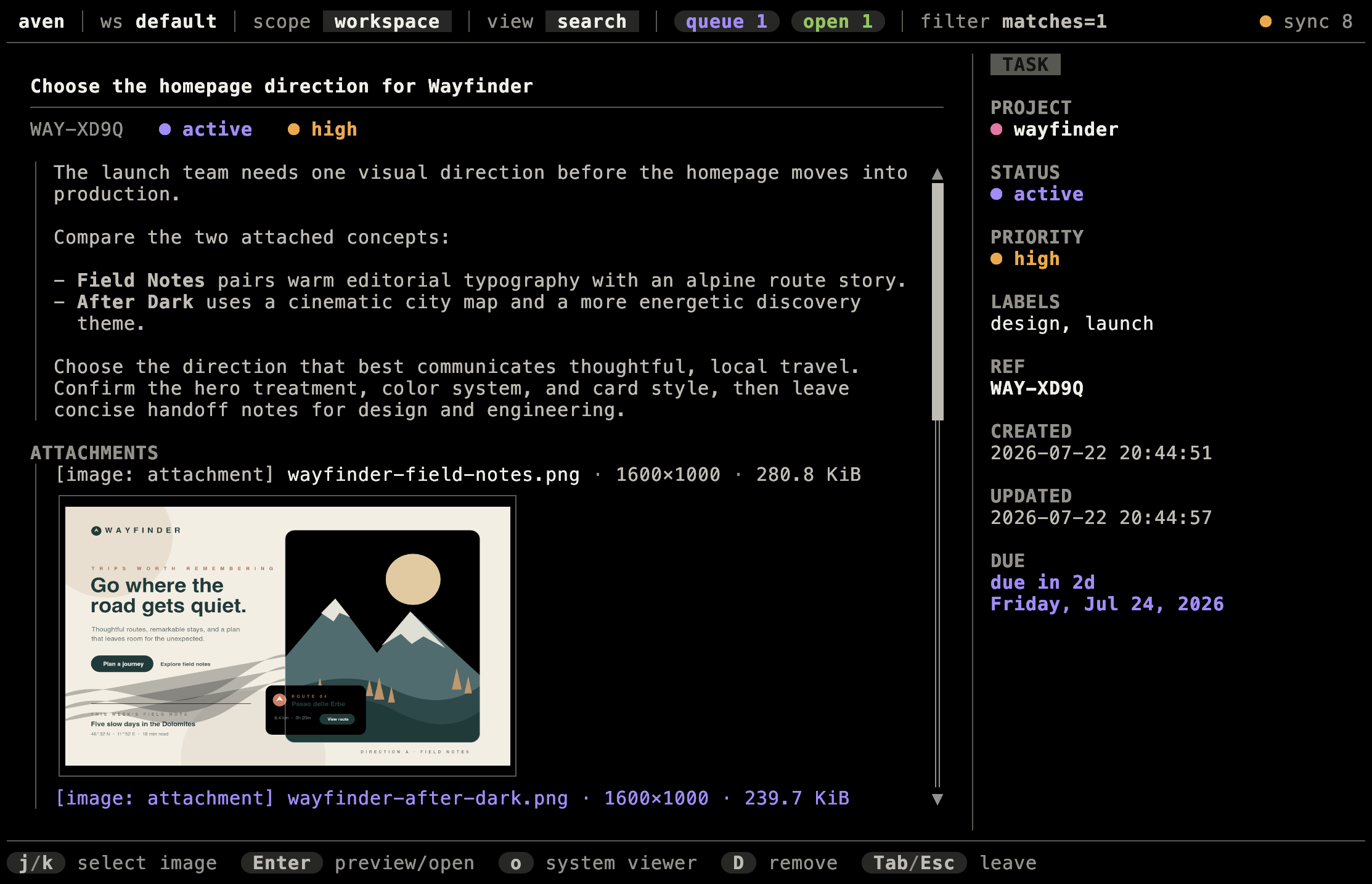
Kitty showing an inline image attachment preview in task detail.
Open the preview to move between attachments, open one in the system viewer, or delete one. To save an image as a regular file, use aven attachment get.
Projects and relationships
Section titled “Projects and relationships”Press p to manage projects and L to manage labels. t B and t U add and
remove blockers, and g B jumps to a blocker. Epic actions live under t c. In
task detail, focus a relationship to open or unlink its task.
Press p r to choose a project and edit its Name and Prefix, including from a
selected sidebar project. Name is focused initially; Tab or Shift+Tab switches
fields. Prefix is prefilled and uppercased as you type. Press Enter to save both
fields, Ctrl+U to clear text before the cursor, or Esc to cancel. Invalid or
already-used prefixes keep the dialog open with Prefix focused for correction.
Changing only the name keeps the existing prefix.
See Organizing tasks for choosing among workspaces, projects, labels, epics, dependencies, and related tasks.
Recurring tasks
Section titled “Recurring tasks”Press v u to open Recurring Tasks. Each row shows its schedule, next date, and
state. Press Enter on a recurring task to open its detail; the footer shows the
actions available for that state. The t r family also works from a selected
recurring task or one of its dated tasks.
See Recurring tasks for schedules, lifecycle actions, and
history. See aven recur for CLI management.
Conflicts and sync
Section titled “Conflicts and sync”The header shows synchronization state. Click it, press C s, or run :sync to open the Sync dialog, where you can set up or join sync, sync now, add a device, and manage devices. Press S to sync immediately. Press v c to open tasks with unresolved field conflicts, then use the c family to inspect and resolve them.
See Sync across devices for setup, transport, and conflict handling. See Back up and restore for recovery workflows.
Run aven from tmux
Section titled “Run aven from tmux”Bind the project-scoped TUI, workspace-wide TUI, composer, or any combination to tmux popups:
bind C-w display-popup -E -d '#{pane_current_path}' -w 80% -h 80% 'aven'bind C-a display-popup -E -d '#{pane_current_path}' -w 80% -h 80% 'aven -A'bind t display-popup -E -d '#{pane_current_path}' -w 120 -h 30 'aven tui --add-task-only'Aven defaults to the project inferred from the active pane’s current directory.
Use -A to open Aven at workspace scope.
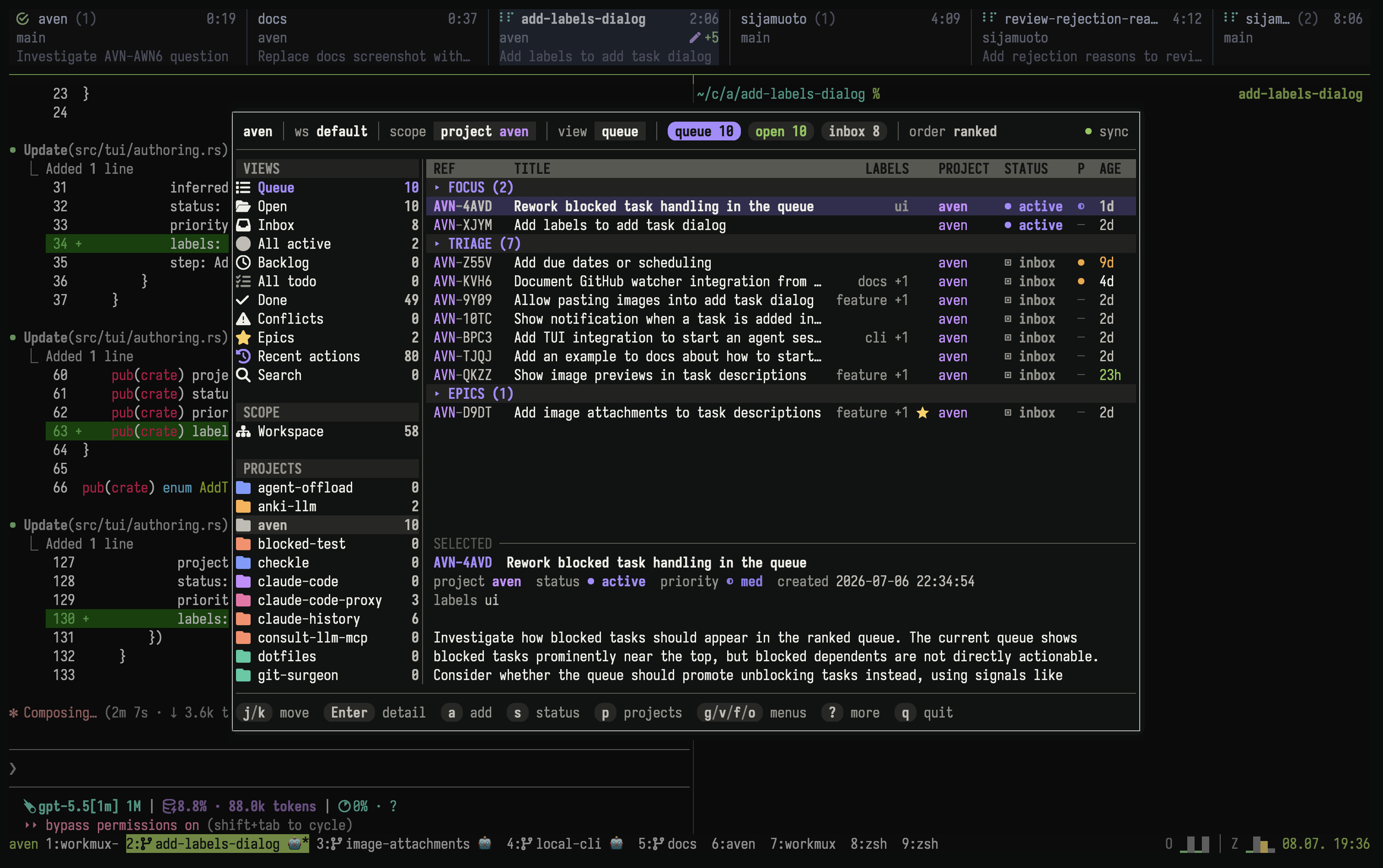
The full TUI opens over the current tmux pane.
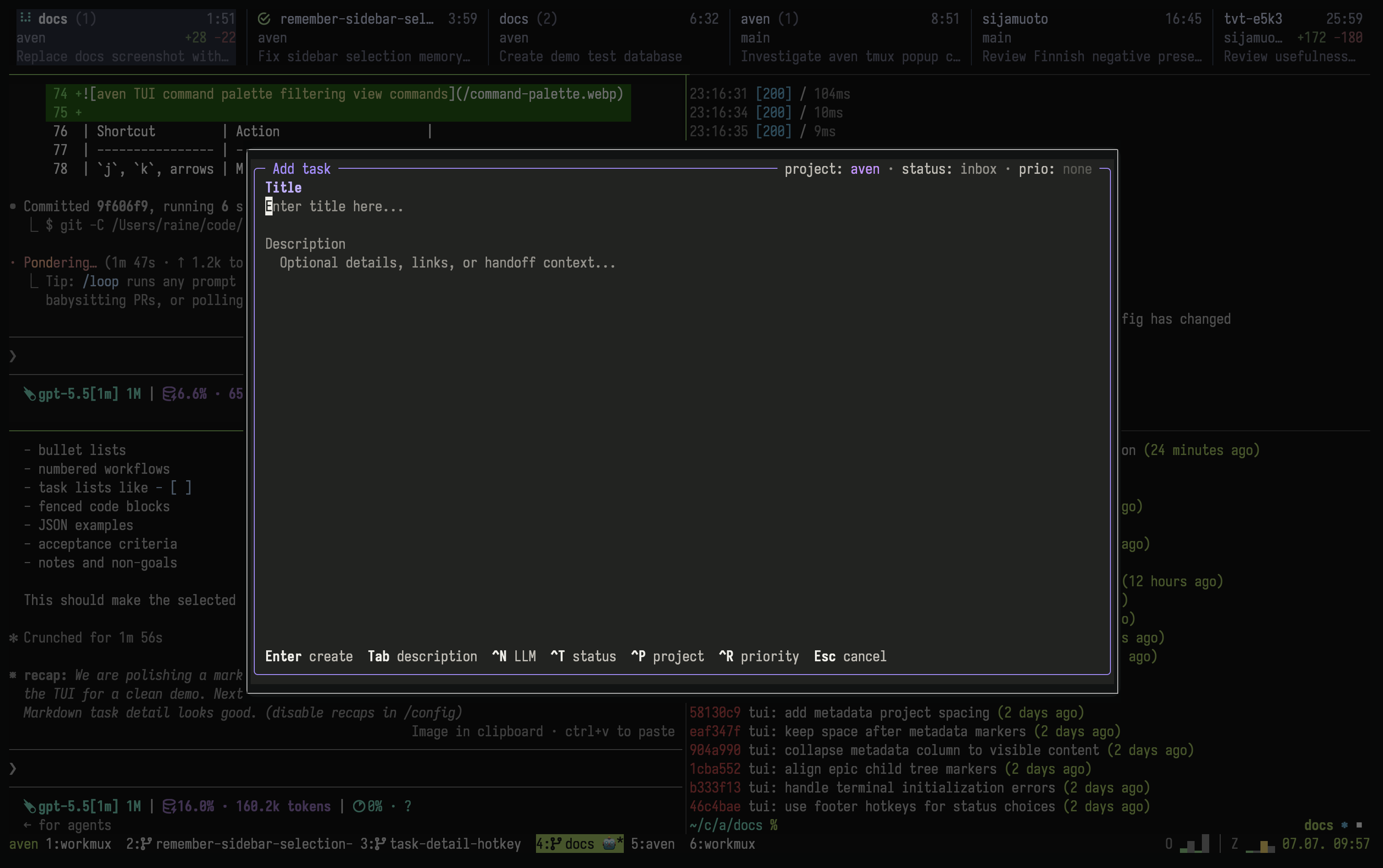
A smaller tmux popup opens directly into the task composer.
See terminal tips for modified-key and tmux configuration.
Mouse support
Section titled “Mouse support”Mouse actions cover the same common outcomes as keyboard commands:
- Click the sidebar or header to change workspace, query, layout, scope, project, filter, or ordering.
- Double-click a task to open detail.
- In the columns layout, click a lane header to move selected or marked tasks, or right-click a task to choose status.
- Click an inline image to open its TUI preview, or its text label to use the system viewer.
- Scroll task detail with the mouse wheel.
Discover commands
Section titled “Discover commands”The in-app command catalog is the authoritative shortcut reference:
?lists commands available in the current mode.:searches command names and descriptions.Tabcycles through matches.:themeswitches betweendark,light, andterminalcolors for this session without changing your config.- Prefix keys show their available continuations in the footer.
| Prefix | Family |
|---|---|
g | Navigation, scope, and workspace |
v | Views |
f | Filters |
o | Ordering |
e | Edit task fields |
t | Task lifecycle and relationships |
y | Copy task information |
p | Project administration |
L | Label administration |
c | Conflict resolution |
C | Configuration |
Custom metadata
Section titled “Custom metadata”Task detail shows custom metadata in its own section. Press e m to edit a
field: pick one from the list, type a value, and press Enter to save. For
multiline values, press Ctrl-x Ctrl-e to use your $VISUAL or $EDITOR.
Define and rename fields with the CLI; see Task metadata.
Triage mode
Section titled “Triage mode”Triage mode is a way to clear out tasks that need a decision, one card at a time. Run :triage to review:
- Inbox tasks
- Active tasks with no activity for 7 days
- Todo tasks with no activity for 30 days
Triage follows the current scope. In project scope it reviews only that project. It shows up to 10 cards per session. When you finish them, press Enter to load the next batch.
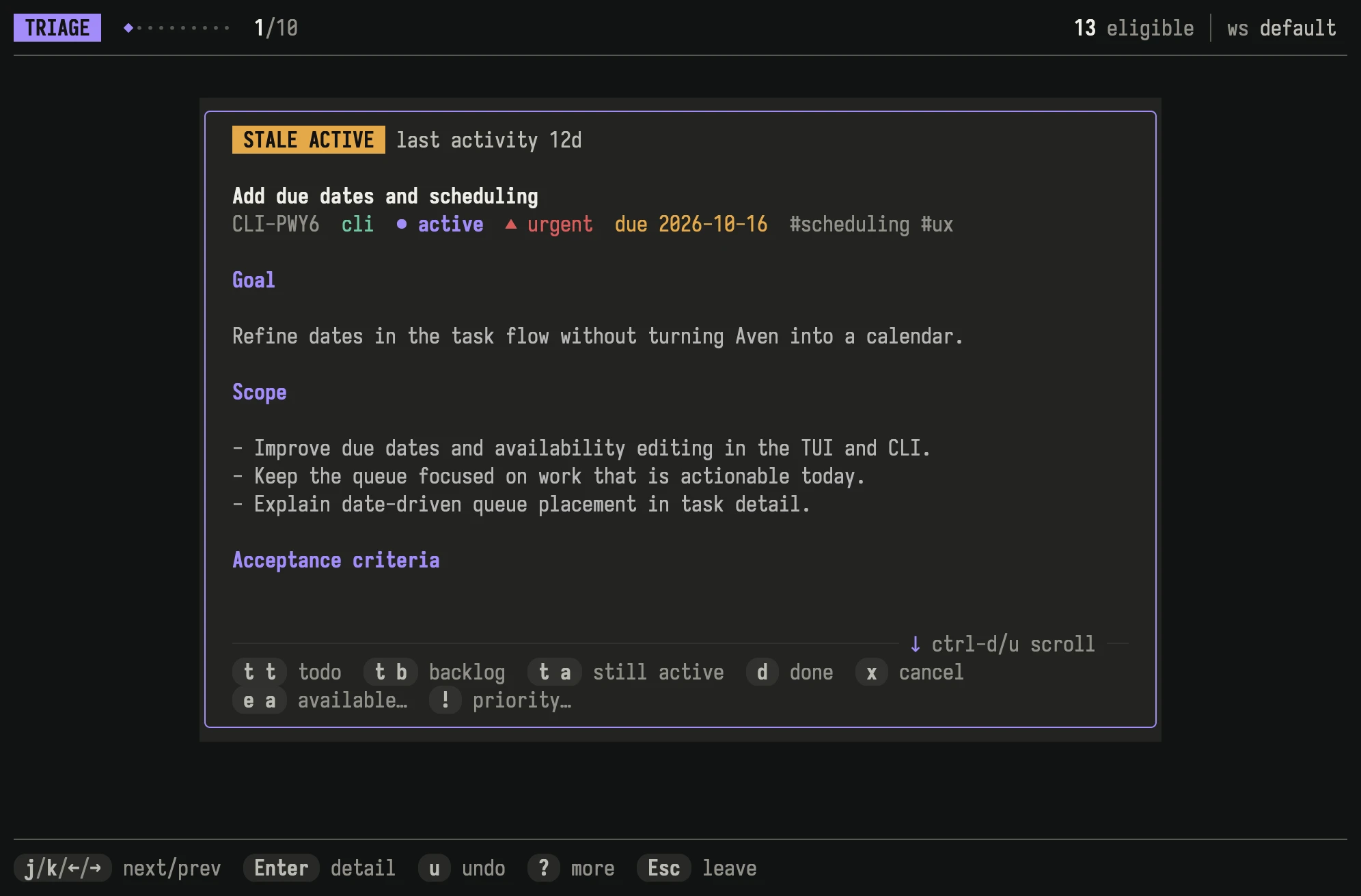
Each card shows why the task needs attention, its description, and the decisions available for it.
Each card lists the decisions available for the task with the same shortcuts as the task list. After a decision, triage moves to the next card. Custom commands also run on the card’s task.
Choosing the current status of an active or todo task keeps it as it is. Aven records the review on this device only and leaves the task unchanged. The task returns to triage once another stale period passes without activity.
Cards you skip return in the next session.
Reference
Section titled “Reference”- Concepts defines the task model behind the interface.
- Work with agents connects coding agents and chat integrations to Aven.
- Custom TUI commands documents local programs, JSON task context, and command lifecycle settings.
- Command reference documents CLI equivalents and input grammar.
- Configuration covers workspace routes, project mappings, sync defaults, and task-intake configuration.
- Terminal tips covers terminal input, tmux, and image previews.