

Notifications
Aven sends desktop notifications for:
- reminders when tasks are due or become available, if you turn them on
- background AI task creation that finishes after you close the TUI
Reminders
Section titled “Reminders”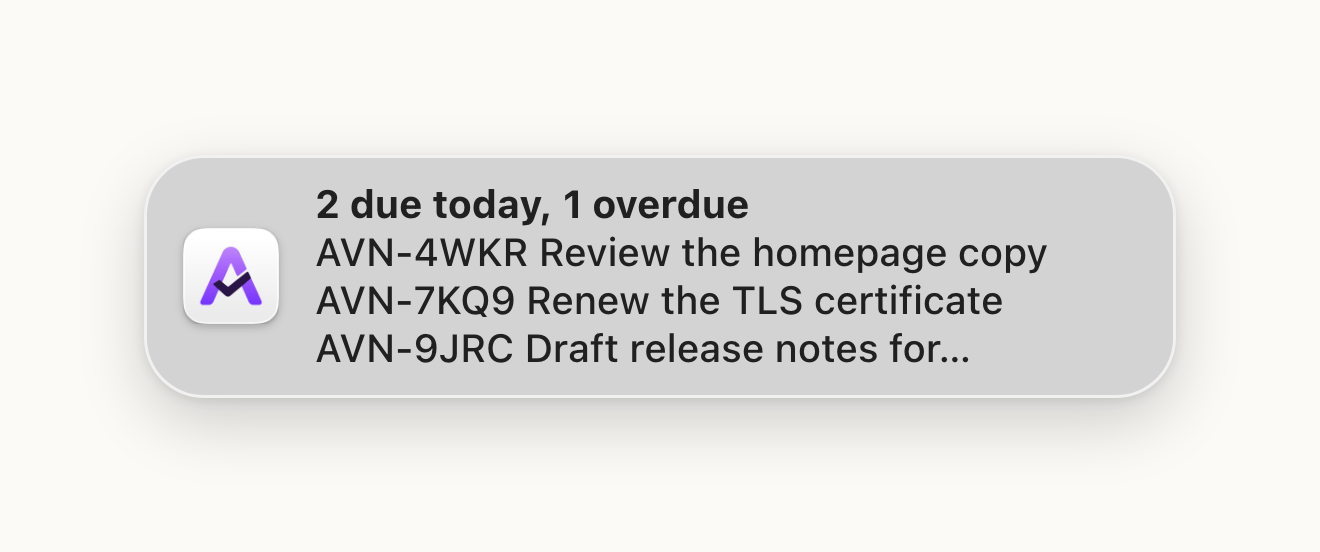
Reminders come from the background daemon, so they arrive while the TUI and CLI are closed. Turn them on, then restart the daemon, or run aven daemon install if it isn’t installed yet:
aven config set reminders.enabled trueaven daemon restartAven sends two kinds of reminder:
- Daily digest: once a day at
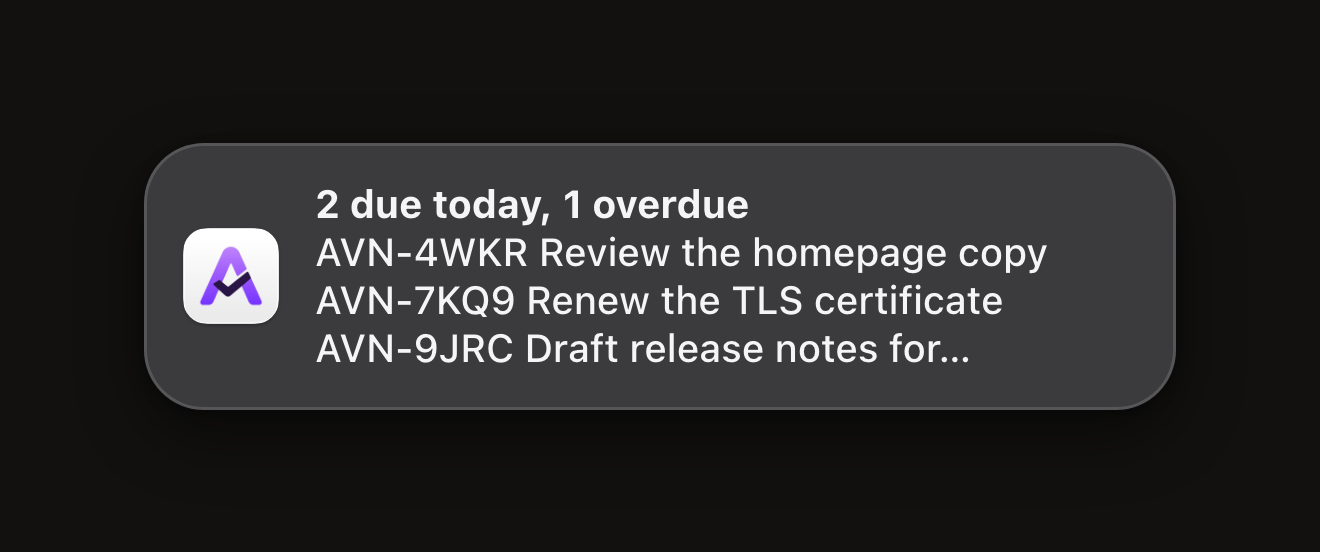
digest_time, a summary titled with the counts, such as “2 due today, 1 overdue”, that lists the first three tasks by ref and title. Blocked and deferred tasks count too. Overdue tasks appear every day until you complete, cancel, or re-date them. If your Mac is asleep or off atdigest_time, the digest arrives when it wakes later that day. A missed day’s digest is never sent. If nothing is due, no digest is sent that day. - Available again: when a deferred task reaches its available time, one notification for that task. A blocked task waits and notifies once its blockers are done. Deferring the task again to a new time notifies again at that time. When more than three tasks become available at once, you get a single summary listing the first three.
A task that became available more than 24 hours before the daemon noticed, for example after a long time offline, does not notify. Clicking a reminder dismisses it.
Each device keeps its own record of sent reminders. If several devices run the daemon, each one notifies.
Configure reminders in config.yaml, then run aven daemon restart:
reminders: enabled: true digest_time: "09:00" # local time, HH:MM due_digest: true # daily digest of due and overdue tasks available: true # deferred tasks becoming availableOn macOS, Homebrew and the install script include an Aven.app bundle so notifications appear as Aven, with its own icon and notification settings.
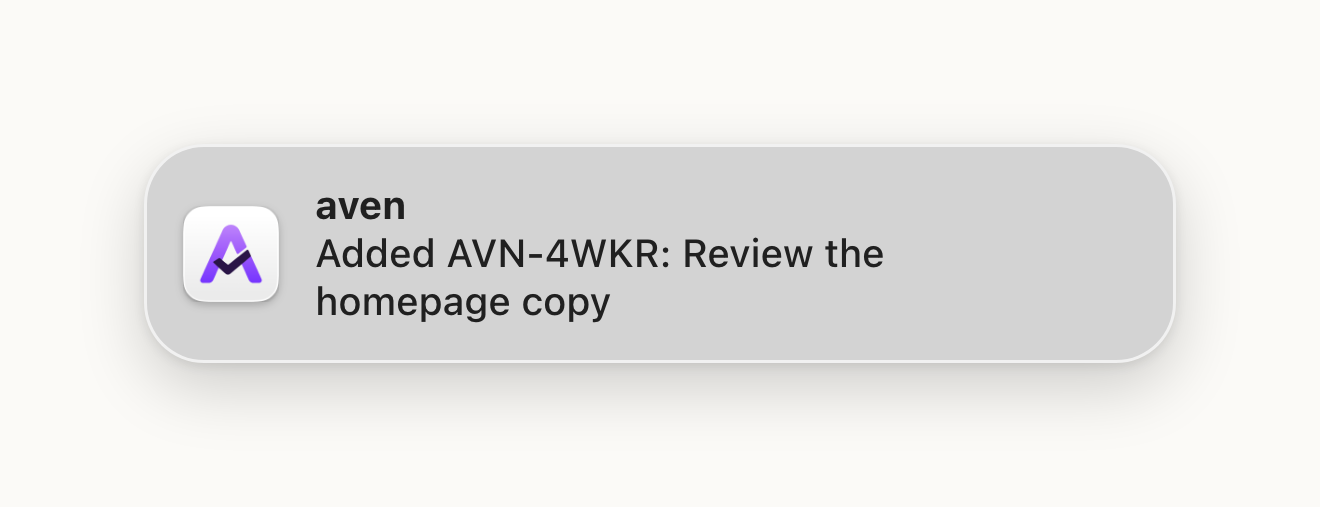
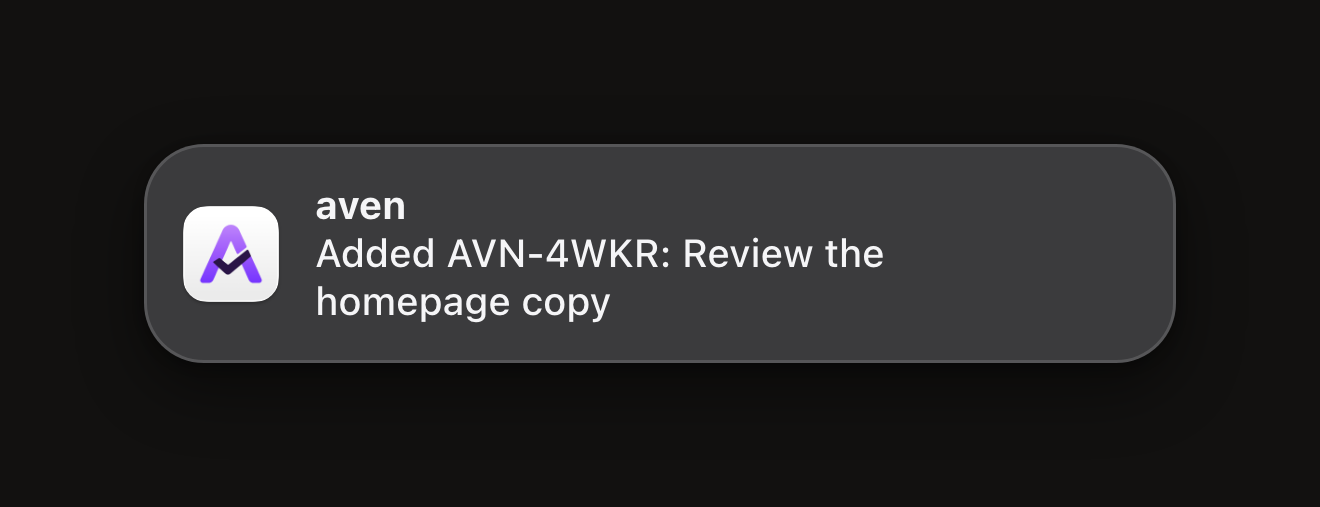
Choose Allow when macOS first asks. To change this later, open System Settings → Notifications → Aven.
Allow notifications during Focus
Section titled “Allow notifications during Focus”Open System Settings → Focus, select your Focus, and add Aven to its allowed apps. Repeat for each Focus where you want notifications.
Notifications appear as Terminal
Section titled “Notifications appear as Terminal”Nix and bare-binary installs send notifications as Terminal. Use Terminal’s notification and Focus settings instead.